Installation Issue
with Windows 11
PROBLEM: Installing new copy of SpeedCast in a Windows 11 PC
or laptop for the first time and hardware is not recognized.
The solution is to click on the Windows icon at the bottom
of the screen:

In the Search Box, enter "Turn Windows Feature on or off"

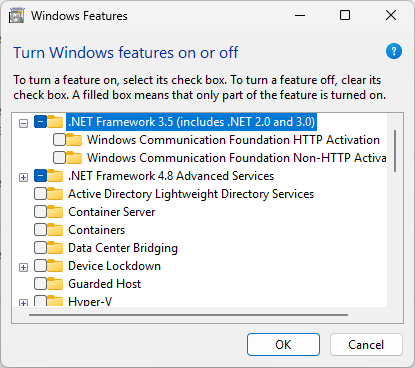
This popup will appear and at the very top of the list
check the .Net Framework 3.5 (includes .NET 2.0 and 3.0). Then click OK.
Windows
11 でのインストール問題
問題:
Windows 11 PC またはノートパソコンに SpeedCast の新規コピーを初めてインストールする際、ハードウェアが認識されない。
解決策は、画面下部の
Windows アイコンをクリックすることです:
検索ボックスに「Windows の機能の有効化または無効化」と入力してください
このポップアップが表示されます。リストの一番上で「.NET Framework 3.5(.NET 2.0 および 3.0 を含む)」にチェックを入れます。その後「OK」をクリックしてください。
Installationsproblem
mit Windows 11
PROBLEM: Bei der
erstmaligen Installation einer neuen Kopie von SpeedCast auf einem Windows
11-PC oder -Laptop wird die Hardware nicht erkannt.
Die Lösung besteht
darin, auf das Windows-Symbol am unteren Bildschirmrand zu klicken.
Geben Sie in das
Suchfeld „Windows-Funktion aktivieren oder deaktivieren“ ein.
Dieses Popup-Fenster
wird angezeigt. Markieren Sie ganz oben in der Liste „.Net Framework 3.5
(einschließlich .NET 2.0 und 3.0)“. Klicken Sie dann auf „OK“.