Switching SpeedCast for Left-Handed Use
This will change the
direction of the x-axis measurement on vertical machining centers for
left-handed use, but this is not permanent. There is an
article on how to make this change permanent.
Click on 2.
Setup button.
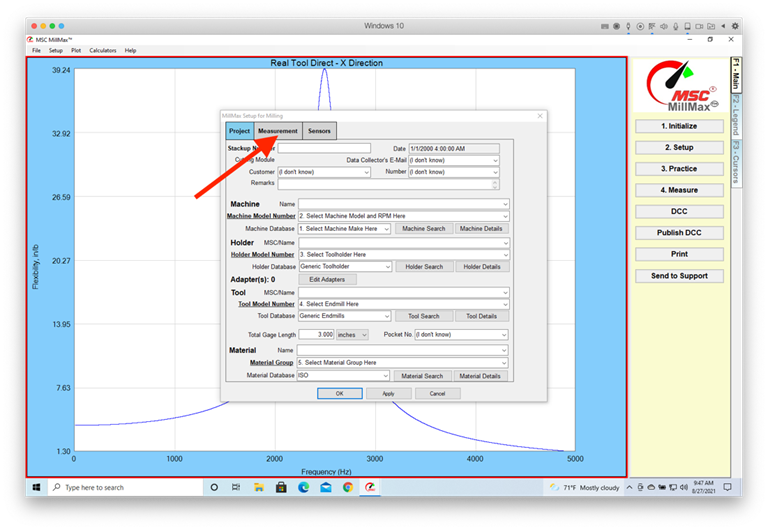
Click on the Measurement tab.
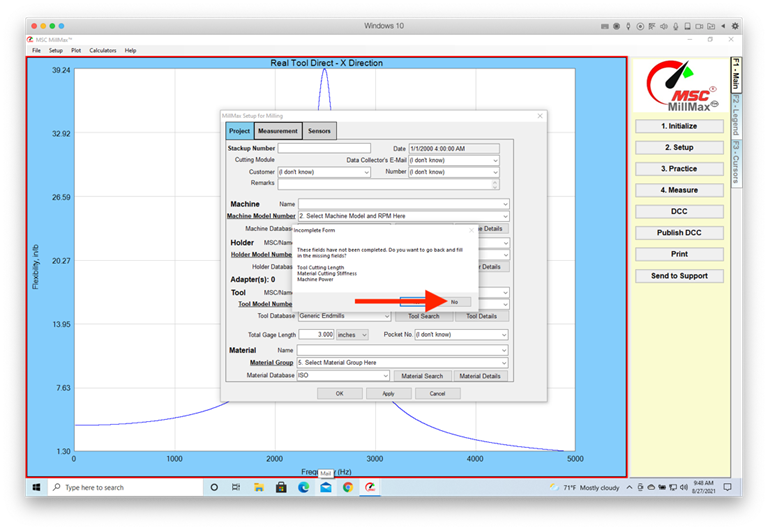
Click No.
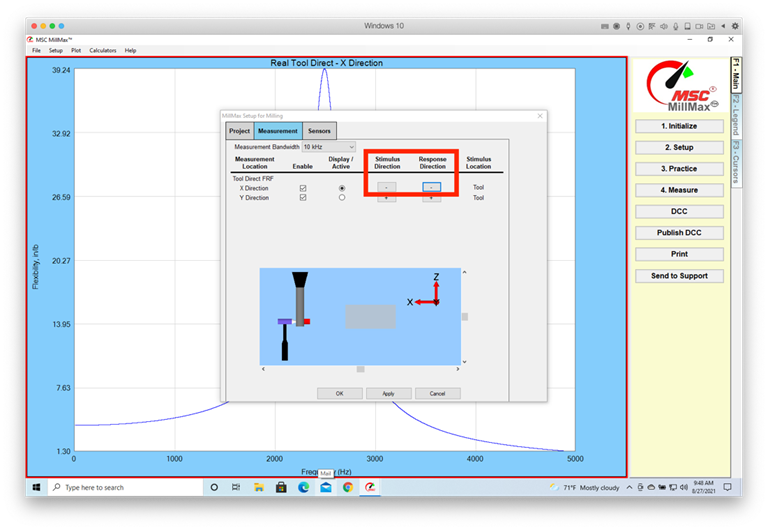
Click
on the two Stimulus Direction and Response Direction buttons on the X-Axis to
change them to "minus" ("-"). Leave the Y-Axis unchanged.
Note the image is now left-handed. Click Apply and then OK.
左利き用にSpeedCastを切り替える
これにより、左利き用の立形マシニングセンタのX軸測定の方向が変わりますが、これは永続的ではありません。
この変更を永続的にする方法に関する記事があります。
2をクリックします。[設定] ボタンをクリックします。
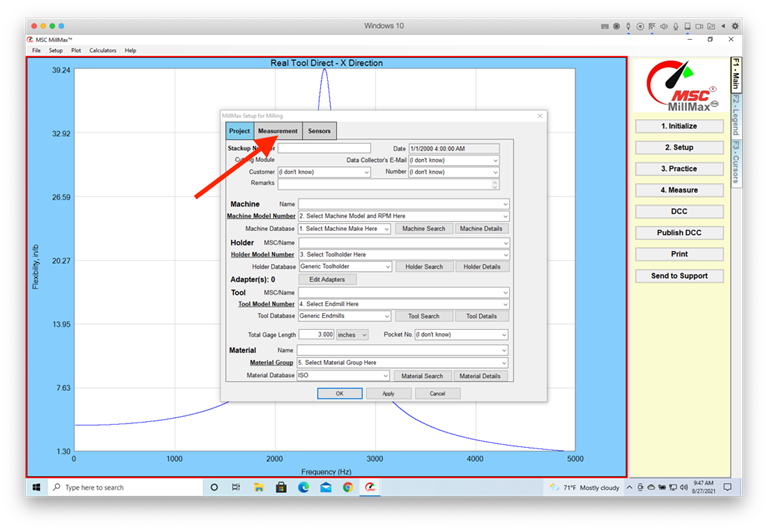
[測定]タブをクリックします。
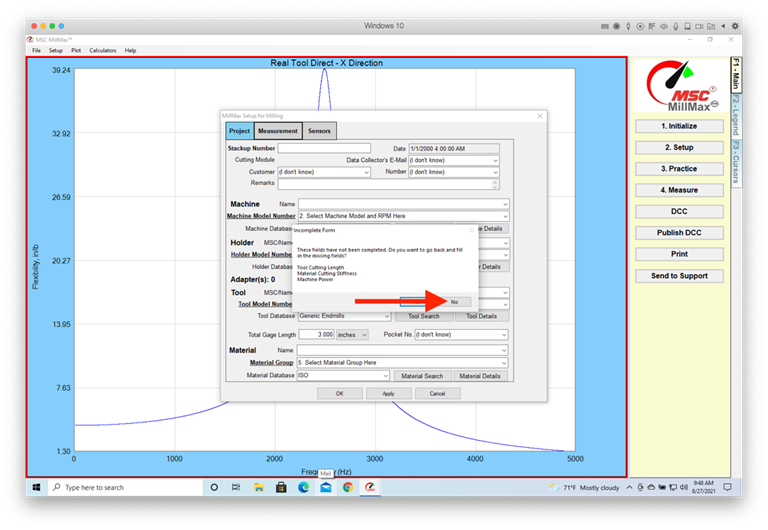
[いいえ] をクリックします。
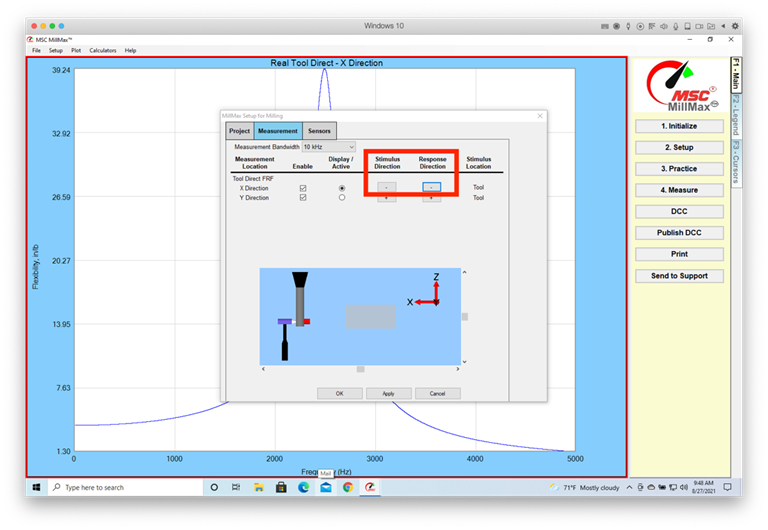
X軸の2つの刺激方向ボタンと応答方向ボタンをクリックして、それらを「マイナス」(「-」)に変更します。Y軸は変更しません。画像が左利きになっていることに注意してください。[適用]
をクリックし、[OK]
をクリックします。
Umschalten
von SpeedCast für Linkshänder
Dadurch ändert
sich die Richtung der x-Achsen-Messung auf vertikalen Bearbeitungszentren
für Linkshänder, dies ist jedoch nicht dauerhaft. Es gibt einen Artikel darüber, wie man diese Änderung
dauerhaft machen kann.
Klicken Sie auf 2. Schaltfläche Setup.
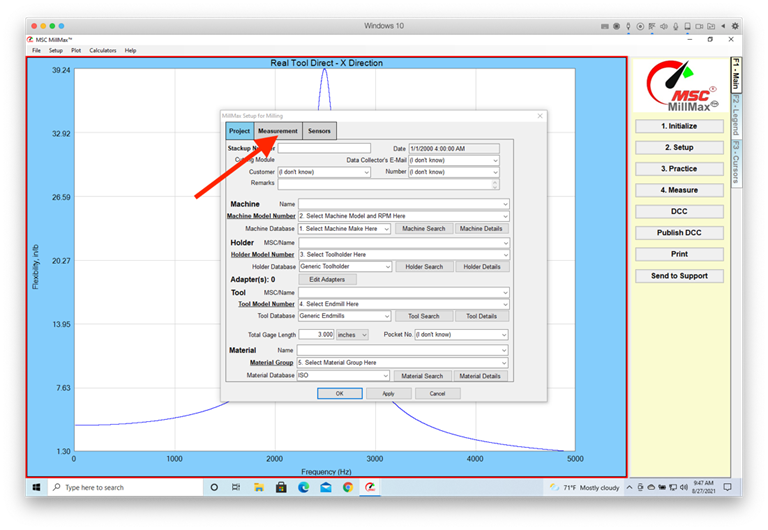
Klicken Sie auf die Registerkarte
Messung.
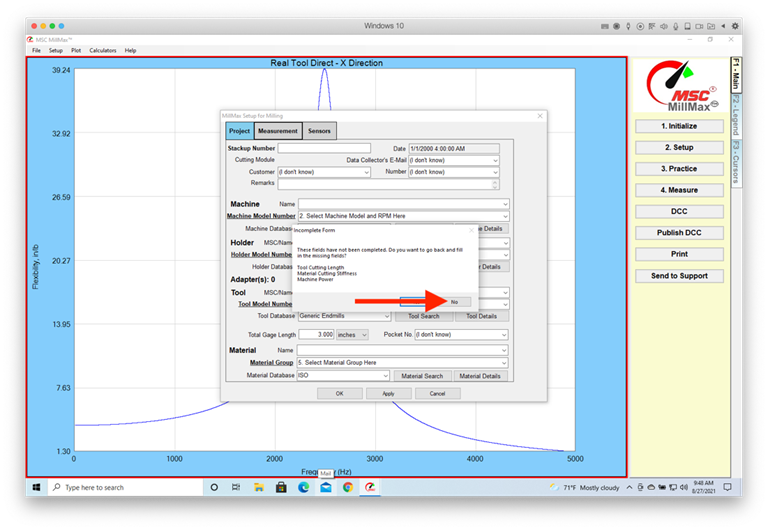
Klicken Sie auf Nein.
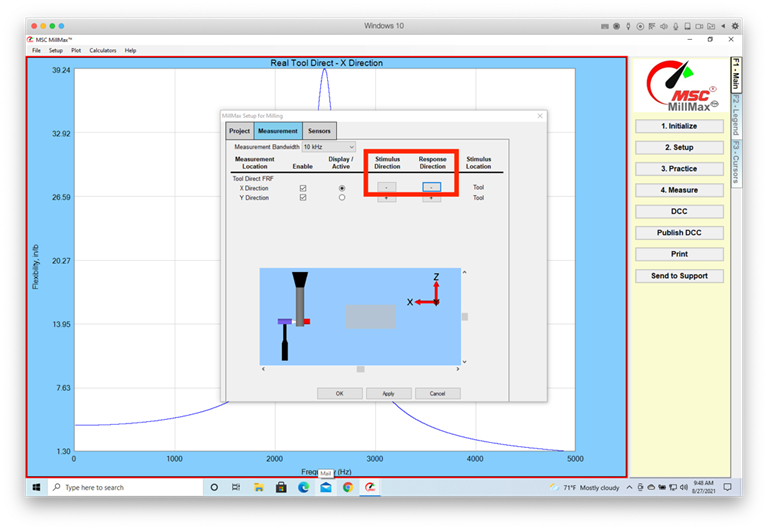
Klicken Sie auf die beiden
Schaltflächen Stimulusrichtung
und Antwortrichtung auf der X-Achse,
um sie auf "Minus" ("-") zu ändern. Lassen Sie die Y-Achse unverändert. Beachten Sie, dass das Bild jetzt linkshändig ist. Klicken Sie auf Übernehmen und dann auf OK.